
Getting started
Connecting a wallet
Connect MetaMask, Phantom, Coinbase Wallet, or any other injected wallet — shared across every Titan product.
Browsing locks and reading certificates doesn't require a wallet. You only need to connect one to create a lock or withdraw from a lock you own.
Click “Connect Wallet” in the top-right corner of the header from any page.
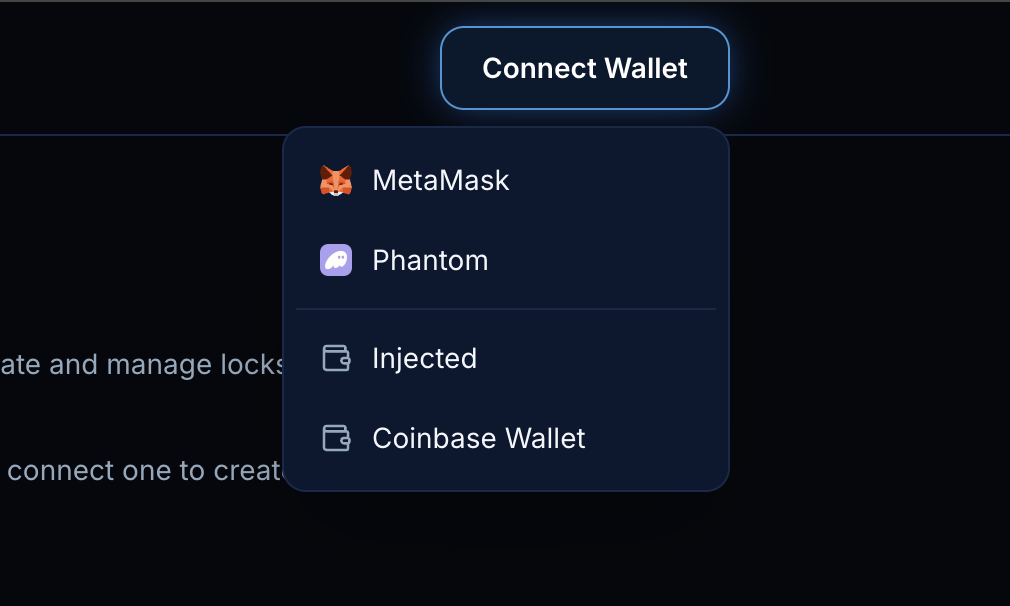
Wallets installed in your browser that you'd actually recognize by name — MetaMask, Phantom — are listed first. Below a divider come the fallbacks:
- Injected — a generic fallback for any other browser wallet that injects window.ethereum.
- Coinbase Wallet — connects via Coinbase's own connector, browser extension or mobile.
Titan Locker runs on Robinhood Chain (chain ID 4663) and Stable Chain (chain ID 988). If your wallet is on a different network, it will prompt you to switch or add the chain the first time you interact with a contract.
Adding WalletConnect
A WalletConnect option becomes available automatically once a project ID is configured, for connecting mobile wallets by QR code. Until then, use an injected wallet or Coinbase Wallet.